
Windows 10 end of life (EOL) occurred on October 14, 2025. This meant that Microsoft would no longer support Windows 10 with updates, leaving your computer vulnerable.
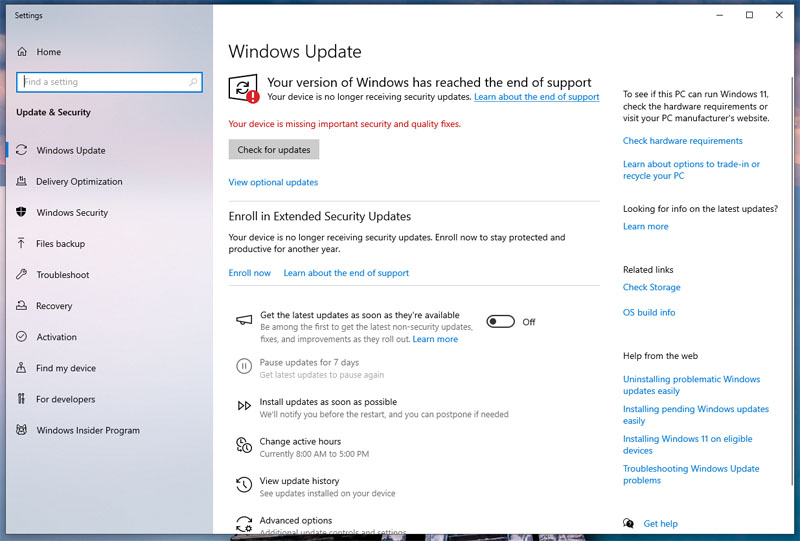 However, Microsoft offered a free one-year support extension called Extended Security Updates (ESU) if you configure your computer to back up settings to a free online Microsoft account. (Thankfully, you don’t have to switch your local account to the Microsoft online user account.) So effectively, changing the EOL to October 14, 2026.
Enroll in the free one-year ESU:
- Run “Windows Update”. You will see a message that “Your version of Windows has reached the end of support”.
- Click on the “Enroll now” link under the “Enroll in Extended Security Updates” section. The related ESU dialog will appear.
- Click Next and sign into your Microsoft online account. If you don’t have a Microsoft account, you can create it.
- Select “Back up your PC settings” under “Choose how you want to enroll”. Click Next.
- Click Enroll.
- Run “Windows Update” again. You will see a message that “Your PC is enrolled to get Extended Security Updates”.
We are now less than 2 months away from October 14, 2026, and I’m wondering what to do about Windows 10.
A modern operating system (OS) like Windows 10 has two significant vulnerabilities. The first are newly-discovered security holes in the OS itself, which Microsoft would provide OS patches for. The second are virus and spyware infections introduced by the user installing downloaded apps, opening downloaded documents, and browsing the Internet. Microsoft provides a built-in antivirus protection called “Windows Defender” and updates it often with new virus definitions. Windows 10 EOL would result in Microsoft no longer providing OS patches or virus definition updates for future threats, leaving your Windows 10 computer more and more vulnerable as time passes.
Note: In addition to “Windows Defender”, I also run Malwarebytes to specifically protect my computer against spyware.
In the past, you would just upgrade to the next version of Windows when the current Windows version reaches EOL. Unfortunately, Windows 11 requires Trusted Platform Module (TPM) 2.0 hardware and a later generation CPU (specifically, an 8th generation Intel processor or newer). Older computers would lack one or both of these requirements. (Unfortunately, my HP ProDesk 400 G3 MT desktop uses TPM 1.2 and an Intel i5-6500 6th generation CPU.)
Note: Microsoft claims that the Windows 11 hardware requirements are necessary for security. This makes sense for TPM 2.0 because it provides hardware support for encryption and digital certificates. However, I don’t understand the requirement for newer CPU models because you can still install Windows 11 onto a computer with an unsupported CPU (though some functions like automatic updates may not work 100%).
So let us explore some options going forward, roughly arranged from worst to best.
Windows 10 With OS Vulnerabilities
After the free one-year ESU ends on October 14, 2026, Microsoft will no longer provide Windows 10 OS patches for any newly-discovered OS vulnerability. However, Microsoft will continue to provide Defender virus definition updates until October 2028. Thus, you could continue to live dangerously using Windows 10, betting that no new harmful OS vulnerability will be discovered and exploited.
Note: Supposedly, businesses can pay for 3 additional years of ESU for their computers running the Windows 10 volume license. The cost is $61/device which doubles each consecutive year. The additional 3 years of ESU are not provided for individuals running the Windows 10 consumer license.
As time passes, software vendors will stop supporting Windows 10. You may need to upgrade to Windows 11 (or the latest macOS) to use the newest version of your favorite software. The first example is TurboTax 2025, which surprised tax filers at the beginning of this year by ending support for Windows 10 (and macOS 13 Ventura).
Windows 10 LTSC Version Until 2032
Microsoft provides a Long-Term Servicing Channel (LTSC) version of Windows 10 which has support until January 13, 2032. The specific flavor is “Windows 10 IoT Enterprise LTSC 2021”, which is designed for dedicated endpoint devices like kiosks. As a result, this flavor omits consumer-oriented apps and features like “Microsoft Store”, Cortana, OneDrive, and Outlook.
Also, there may be a tiny possibility of driver incompatibilities with certain hardware. An online user comments that he could not get the built-in Realtek audio working on his MSI H110M ECO motherboard.
You would need to buy a license to install “Windows 10 IoT Enterprise LTSC 2021” ($5-20 from unknown sketchy websites) and do a clean OS installation because upgrading from a consumer licensed Windows 10 is not supported. After installation, you can manually install any missing software like “Microsoft Store” and OneDrive.
Note: If you plan to use “Windows 10 IoT Enterprise LTSC 2021” for gaming, be aware that Microsoft might not support DirectX versions beyond 12 or drivers for new 3D graphics cards.
Windows 11 Requiring Yearly Re-installations (No TPM 2.0, Unsupported CPU)
If your computer does not support TPM 2.0 and uses an unsupported CPU, you can still install Windows 11. It just won’t be pretty. You must do a clean installation of Windows 11, not an upgrade from Windows 10, and ignore any warnings about TPM 2.0 and the unsupported CPU. There are significant downsides to this approach.
Note: You can run “Security processor” (under Windows Settings and Windows Security) to see details about TPM. Look for “Specification version” for the TPM version number. Alternatively, you can run “tpm.msc” and look for “TPM Manufacturer Information” for the TPM version number.
Before talking about the downsides, we need to talk about the difference between a major update versus a minor update. If you run “winver”, the “About Windows” dialog will appear and show details about the Windows version. A Windows 11 example is “Version 23H2 (OS Build 22631.4602)”. Major updates will change the Version number, while minor updates will change the OS Build number.
Minor updates occur frequently throughout the year, usually containing Defender virus definition updates and other small patches. Major updates are usually released once per year (rarely, twice a year) and could contain significant modifications that add or revise features.
Minor updates will be automatically installed on Windows 11 without TPM 2.0 and an unsupported CPU; however, major updates are not automatically installed and cannot be applied manually. In order to run the newest major version of Windows 11, you would need to download it and perform a clean OS installation; there is no OS upgrade path for major updates.
Note: I’m not sure if “Windows Update” will show that a major update is available (without automatically installing it). You can check the Windows 11 release information page to see the latest major update released (currently, Version 26H1).
So once or twice a year, you would need to blow away everything in order to re-install Windows 11 to be current with the newest major update.
Windows 11 With Manual Major Updates (Supported TPM 2.0, Unsupported CPU)
If your computer supports TPM 2.0 but has an unsupported CPU, you wouldn’t need to re-install Windows 11 to get the newest major update. Major updates are supported. You would need to manually download and execute any new major updates for Windows 11 to update itself.
Surprisingly, HP provides a method to upgrade TPM 1.2 to 2.0 for my HP ProDesk 400 G3 MT desktop. After some research, I determine that the HP SoftPaq SP87753 should do the job. The SP87753 Readme does not include the “MT” version of the “HP ProDesk 400 G3” model, but only the “DT” version. However, Google search AI overview indicates that it would work for “MT” version, so I will give it a go.
According to the AI, I need to disable Bitlocker and clear the TPM (delete any pre-existing security keys). That made sense so I do both. I use the “tpm.msc” utility option to “Clear TPM…” which requires a reboot and BIOS confirmation (press F1 to confirm). (Supposedly, I could suspend Bitlocker protection instead but then I wouldn’t be able to clear the TPM.)
Running the SoftPaq SP87753 unzips the contents and does not start the upgrade process automatically. I have to browse to the unzipped location and run “C:\SWSetup\sp87753\TPMConfig64.exe” since I am using the 64bit version of Windows 10. The executable warns that I need to disable Virtualization in the BIOS (used to isolate virtual machines) before the TPM upgrade can occur. (The Virtualization is enabled to optimize the Windows 10 Linux Subsystem; supposedly, if Virtualization is disabled, it would impact performance severely.)
I boot into the BIOS, disable the two settings related to Virtualization, restart Windows 10, execute the TPMConfig64 utility, and select update to 2.0 (strangely, it offers the 1.2 version to update to, even though I am already on 1.2). The computer reboots several times, occasionally asking me to press F1 to confirm the change request and the request to update to TPM 2.0. After another two final reboots, Windows 10 starts up without any issues.
When I ran “tpm.msc”, I find that the “TPM Manufacturer Information” now listed “Specification Version: 2.0” instead of “1.2”. I select the “Clear TPM…” option again to make sure that everything is reset for TPM 2.0. I am not prompted to press F1 to confirm clearing the TPM so I guess the TPM is already cleared.
I reboot to the BIOS, re-enable the two Virtualization options, reboot into Windows 10, and enable Bitlocker again. My desktop is now successfully updated to use TPM 2.0.
Before Windows 10 EOL on October 14, 2026, I plan to install Windows 11. Hopefully, at that time, I will still be able to activate Windows 11 with a Windows 10 license key. Crossing fingers that everything will go well.
Awww, man, thanks for summarizing the options. I have a box stuck on Windows 10, and it seems I should at least get that year’s worth of updates.
(Also testing if you get an email for comments.)
Yeah, let’s keep those old machines working. My next project is to get my old outdated, unsupported Macs upgraded to the latest using OpenCore Legacy Patcher.
Thanks for the test. I did get a comment moderation email though twice… not sure why it sent it two times.
Update: Figured out the two emails issue. The admin email address is set in two places, WordPress/Settings/General and WordPress/Users. I had two different email addresses set so it sent two separate emails to my integrated Inbox. If the email address in both places are the same, WordPress will only send one email.
The two times might’ve been my fault because I butterfingered and pressed twice, and it said you already submitted that comment. Sheesh — I can’t even do that correctly.
I’d be interested in anything keeping my Intel Macs relevant, as we just fell off the OS update wagon.