
For the past few months, my Windows 10 desktop computer’s wired Internet connection has been laggy and slow. When first browsing to a website, it would sometimes pause for 30 seconds before loading the page. And download speeds were slow, 60-80 Mbps (according to Speedtest).
Change DNS
I thought the first lag issue might be caused by my Spectrum Internet provider’s slow DNS resolution so I modified my desktop to use Google DNS by doing the following:
- Run “View network connections” to open Control Panel’s Network Connections panel.
- Right-click on Ethernet (or whatever your Ethernet adapter is named) and select Properties.
- Select “Internet Protocol Version 4 (TCP/IPv4)” and click on the Properties button. (Or double-click on it.)
- In the General tab, select “Use the following DNS server addresses”.
- Input Google DNS 8.8.8.8 (preferred) and 8.8.8.4 (alternate).
After applying the changes above and rebooting, the browsing lag issue still occurred. It wasn’t a problem with the DNS resolution.
Bad Ethernet Port
I then looked into the second speed issue. The slow speed was strange because I was paying for Spectrum 1 Gbps Internet Cable and my desktop was connected by wire to the router. Also, the Ethernet port on my HP ProDesk 400 G3 MT desktop was rated for gigabit speed. I should be getting close to 1 Gbps, not the 50-80 Mbps that I was getting. Spectrum’s internal speed test showed that the cable modem reached close to 1 Gbps so the problem was on my end.
I replaced the Ethernet cables between the cable modem and the router and between the router and my desktop. Speedtest then showed over 800 Mbps results. I thought the problem was solved. However, several hours later, when I double-checked, the speed had dropped back to below 80 Mbps. I connected the desktop directly to the cable modem and the speed was still slow. I tested a wired connection with my MacBook and it consistently went over 800 Mbps. I can only conclude that the Ethernet port on the HP desktop was malfunctioning. (I was not surprised because recently, my niece’s HP desktop’s motherboard had started malfunctioning with intermittent CPU pauses and lags. I made a mental note to never buy HP computers again.)
Because I couldn’t use a wired connection, I decided to try the wireless route. I purchased and installed the Intel Wi-Fi 6E AX210 wireless PCIe card. The AX210 supported the latest 802.11ax protocol and 3 frequency bands (2.4GHz, 5GHz, and 6GHz). I had used an Intel Wireless-AC 9260 card in the past and it was rock solid. So, I figured the latest Intel AX210 would be reliable and trustworthy. I was wrong.
While the Intel AX210 gave me over 400 Mbps speed, it would also randomly and intermittently disconnect for 8-10 seconds. This would occur a few times an hour and made using the Internet very unpleasant. (Minorly, when browsing a website, the page loading would lag for a second or two before loading. Still much better than the 30 seconds lag time previously.)
Downgrade AX210 Driver Version
I searched for fixes and found that the Intel AX210’s intermittent disconnect problem had been known since 2023. A 2024 Intel forum post, Wi-Fi 6E AX210 160MHz Frequent Disconnects], suggested that the disconnect issue was caused when the wireless card tried to re-authenticate over WPA2 security. Evidently this only occurred with some routers (most likely, older routers that did not support the 802.11ax protocol like my Linksys WRT1900ACSv2). The fix was provided by the version 22.110.11 driver. Unfortunately, that fix did not seem to be included in later versions so it was suggested to downgrade the driver to 22.110.1.1.
Just to be sure, I downloaded and installed the latest version 24.10.0.4 driver from Intel (which had not been provided by “Windows Update” yet). The latest version did not address the issue because my desktop still exhibited the intermittent disconnections.
I then downgraded to version 22.110.1.1 by doing the following:
- Uninstall the current driver but running “Device Manager”, opening “Network adapters”, locating the “Intel Wi-Fi 6E AX210 160Mhz” device, left-clicking on it and selecting “Uninstall device”, and checking the “Delete the driver software for this device” option.
- Download the version 22.110.1.1 driver for Intel AX210 and install it.
- Reboot the computer.
 Check the wireless driver version by running “Device Manager”, opening “Network adapters”, locating the “Intel Wi-Fi 6E AX210 160Mhz” device, left-clicking on it and selecting Properties, open the Driver tab, and look for “Driver Version”.
- If you do not see “22.110.1.1”, you will probably see a version newer than that. Follow the step one instructions above to uninstall the device and delete that particular driver version. Reboot and check the version after restarting. Repeat if necessary until you see the “22.110.1.1” version. (What you are doing is deleting all driver versions newer than the target “22.110.1.1” version from the Windows OS.)
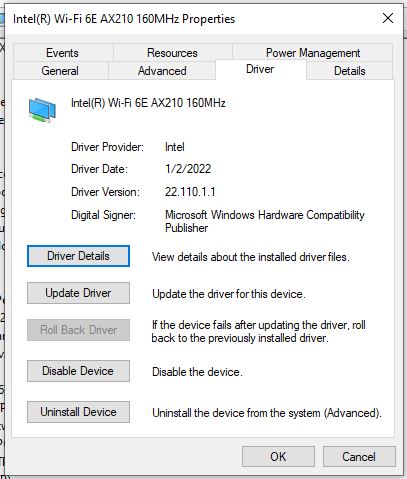
Version 22.110.1.1 appeared to solve all my problems. Both the lag and disconnect issues seemed to be gone. However, long-term testing (over two days) revealed that I still experienced a pause a couple of times a day. If the Wi-Fi did not disconnect (20 seconds), it would pause Internet access for about 10 seconds. Still, a couple of times a day versus a few times an hour is a drastic improvement. The downgrade version fix worked 99% and using the Internet was a pleasure again.
Prevent Driver Updates
Note that the latest version of the AX210 driver will show in “Windows Update” as an optional driver update. If you have automatic updates enabled, it may get installed, overwriting the old 22.110.1.1 version. To prevent this (if you don’t wish to disable automatic updates), you may hide the Intel AX210 update by doing the following:
- Download and run the Microsoft “Show or hide updates” tool.
- Click Next. After the scan completes, select the “Hide updates” action.
- You will see a list of pending updates. In my case, I saw three entries related to the Intel wireless driver (though it doesn’t say AX210 specifically):
- “Intel – net – 23.150.0.4”
- “Intel – net – 23.170.0.1”
- “Intel Corporation Driver Update (24.10.0.4)”
They are the different versions of the Intel AX210 driver newer than “22.110.1.1” that are available for upgrade. (Note that “Windows Update” might only show the latest “24.10.0.4” version, instead of all three.)
Note: You would only see the third update above if you had manually downloaded and installed the “24.10.0.4” driver.
- Select all three and proceed to hide them from “Windows Update”.
In the future, versions newer than “24.10.0.4” will show up in “Windows Update” and you will need to manually hide them.
Malfunctioning Router
A week after downgrading the driver version, the intermittent disconnects became more frequent. I installed an old D-Link Wireless N card and found that the issue still occurred. The problem was not the Intel AX210 wireless card. I connected the MacBook directly to the cable modem, tested, and found that the Internet connection was rock solid. The culprit was the Linksys WRT1900ACSv2 wireless router.
Note: I used a Chrome extension, called Internet Connection Monitor, to log the network disconnects.
Shortly after, the wireless internet speed was reduced to 80 Mbps and the intermittent disconnect issue went away. According to the router logs, the uplink Ethernet cable to the cable modem was registered as a 100 Mbps connection. When I switched to another cable, the speed went back up to 400 Mbps, but the disconnect issue appeared again. The old router was no longer capable of supporting high-speed traffic. A router replacement was necessary.
I purchased a Netgear Nighthawk RAXE300 Tri-Band WiFi 6E router and installed it. (I had considered buying a WiFi 7 router but did not have any WiFi 7 capable device to justify the additional expense.) The wireless Internet speed reached over 1 Gpbs and has been solid without any disconnects for a day. Crossing my fingers.
I re-tested the Ethernet wire connection. The speed was only around 400 Mbps and the intermittent disconnects still occurred. The Netgear router logs registered the disconnects as “[DoS attack:ACK_Scan]” events, sent from the desktop computer. My guess was that the Ethernet port acted up and sent random noise, which the router detected as DoS (Denial of Service) attacks. The computer’s Ethernet port was definitely bad.
Strangely, I was not able to see the 6GHz SSID option under Window 10’s wireless network listing. I re-installed the latest AX210 version 24.10.0.4 driver and still no 6GHz option. (FYI, the latest 24.10.0.4 driver did not exhibit any disconnect issue with the Nighthawk WiFi 6E router.) A web search revealed that the missing 6GHz issue was a known AX210 bug, which was fixed in version 22.45.1.1 but not included in later versions. To make the 6GHz band option visible and selectable required downgrading to the 22.45.1.1 driver version. Sheesh, Intel, get your act together. I decided to stick with 5Ghz.
Disable Router Logging
After testing over a two-day period, the new router still logged DoS attacks from the Windows desktop, even over the wireless connection. This would occur at most once a day. The attack would last up to 5 seconds and would freeze the Internet for that time. Strangely, the router also logged very brief DoS attacks (lasting a second or two) from an Android smartphone, an iPad, a MacBook, and an iPhone.
My guess was that the DoS attacks from internal devices were false positives. Once in a while, the Internet-enabled devices were sending brief burst of very high-speed data traffic, which the router registered as DoS attacks. Worse, the router got overwhelmed logging the high-speed traffic, which froze Internet access for all devices.
According to reviews on the web, the Netgear Nighthawk router was known for logging false positive DoS attacks and exhibiting corresponding Internet freezes. The solution was to disable logging DoS attacks, which I did. After that change, I did not notice any Internet freezes. However, Internet Connection Monitor logged “No Internet connection” for 1-5 seconds about once a day.
Future Problems
Gosh, when it rains, it pours. I had a bad Ethernet port, a faulty wireless driver, and finally a malfunctioning wireless router. Hopefully, the journey ends here.
I had thought about buying an Ethernet port expansion card, but thankfully didn’t. I believe that the HP motherboard is probably on the way out. Usually if a built-in part of the motherboard goes bad, this indicates that the motherboard is in the process of dying. So, I will live with it for now and if/when the motherboard dies, I might just get a new motherboard which should have a working built-in Ethernet port.
Or more radically, I may just use my MacBook as a docked desktop computer. Windows 10 won’t be supported after October 2026 (with the free one-year Extended Security Updates) and I don’t feel like buying a new desktop computer (or at least, an 8th generation Intel CPU supporting TPM 2.0 and compatible motherboard/memory) just to run Windows 11. Besides, I haven’t played a 3D-intensive video game for years so one of the main reasons for a Windows PC is no longer applicable. The MacBook should be sufficient for all my needs: web/mobile software development, Word/Excel processing, web browsing, watching videos, listening to music, and playing casual 2D games.
By the way, the thing I most dislike about macOS is the Finder. In my opinion, the Finder is two generations behind the Windows File Explorer in how it displays and handles folders and files (very badly). But my Mac fanatic friends tell me that like with any macOS issue, I can pay for a 3rd party utility to fix that. Oh well, you can’t get everything you want in life. We’ll see.