
My sister has a Google cloud storage plan. She first got it free as part of the promotion for purchasing a Samsung Android smartphone. I believe it was 50GB or 100GB. At that time, we thought it was a lot. She has children and likes to take a lot, I mean a lot, of photos and videos. She had to start paying for more storage and I believe she is paying for a 2TB plan currently.
I don’t understand it. I’m sure my sister has more than 50,000 photos or videos by now (maybe even more than that). How often do you look at your old photos? Do you even have the time to? My sister claims that she does look, but doesn’t provide any further details. I have nowhere near that number of photos and I can count on one hand the number of times I’ve looked through them in the past two decades.
My friend has tens of thousands of emails (if not more) in his Google Mail account. When Google Mail first came out, it advertised unlimited storage. He believed it and took advantage of it. He boasted that he has never deleted an email (even junk mail) after switching to Google Mail. Later, Google limited the free storage to 15GB (maybe it was never unlimited in the first place). My friend is now paying for the 1TB plan, I think. One time, several years ago, he complained to me that his email was a little slow and he spends a lot of time looking for things. Duh, I thought. I don’t remember what I replied with (probably something a bit snarky), but he has never complained about emails to me again.
Since I started working, I subscribed to the empty inbox theory. (I think some marketing person eventually came up with “Inbox Zero” meaning the same thing). When texting became prevalent, I subscribed to the empty text message theory, or “Texting Zero” I supposed. If I can delete an email or a text message, I would as soon as possible. When working, the inbox acted like a to-do list so as soon as I completed the request, I would delete the corresponding email. I would delete any message that doesn’t contain a “reasonable” request or important info. Poof, empty inbox… I mean inbox zero!
I applied the above principle to other parts of my life and ended up as minimalist, which sounded much better than emptiest or zeroist. (I think emptiest is wrong, maybe trashman, garbage collector, or sanitation worker would be more accurate.) I did “Music Zero”. I gave away all my audio cassette tapes (remember those!) and music CDs after ripping only my favorite songs to MPEG-3 (remember those? Am I a music pirate? Am I aging myself?).
Over the decades, I’ve discovered a major problem with music zero theory. My taste in music changes over time. Many of those MPEG-3 songs are no longer my favorites. My new favorites include some old songs I gave away and new songs (dude, it’s been 2-3 decades! Cut me some slack). Thankfully there is this cool online site called pirate tube, I mean YouTube, whose owner shares all the music in the world from all time (are we both music pirates now?).
I also did “Photo Zero”, but gave up halfway through because it became overwhelming. I started getting a headache looking at so many photos. And I got a bigger headache thinking of having to scan all the old physical photos. I tried Marie Kondo’s “Spark Joy” method but after several hundred joys, I was puffed out. Too much of a good thing can turn bad. I’ll complete the purge eventually one day… the one day per year when the gov’t says it’s legal to. ‘Merica!
If you want to attempt “Photo Zero”, here are some recommendations:
- Immediately delete any “pure” landscape, architectural, or cityscape photos. There are professional photographers with several thousand dollars’ worth of equipment (SLR cameras, zoom lenses, drones, and expensive editing rigs) who have already done a much better job. Just google the image and download a favorite version for your own enjoyment. (Wait, you’re such a professional? Never mind. My bad, and sorry about being a photo pirate.)
- Delete any half-eaten meal group photos. Why? Come on, it’s gross, there’s half eaten food, a messy table, family or friends with bits of organic matter stuck in their teeth, the reluctant waiter or waitress taking the photo (you can’t see him or her), and strangers who are bewildered by the flash in the background. Just yuck.
- Talking about strangers, if you see a photo of someone and ask “who’s that”, then delete. (Where the heck are those people coming from?)
- Virtually identical duplicates of the same photo (someone’s finger got too snap-happy)? Pick out a favorite (preferably on a large screen so you can see the pores) and delete the rest.
- Blurry images or tiny people photos (I can’t make out if that is me or some so-and-so), then delete.
- Ugly photos? Need you ask… keep, definitely keep.
- Marie Kondo says if it doesn’t “spark” joy, then toss it. (For physical photos, maybe a match would “spark” something? Don’t try this at home, kids!)
I used to spend a lot of time editing photos – cropping, removing red eyes, and adjusting contrast/brightness levels. Over time, I realized it was unnecessary. What is the purpose of photos? For me, it is to trigger memories, to remind me of fragments of the past. What does cropping and editing have to do with that purpose? Nothing. (Though I must admit, removing red eyes does keep the nightmares away.) The same applies to music. When streaming random music, sometimes a song would come on and suddenly knock me back to the past. The memories flood back, my body lightens, and my whole being comes alive. Or I hear an unknown song which hits just right and becomes a new favorite.
The same should apply to photos. Once in a blue moon when you see your favorite photo, it would have the most impact. It would be best if the photo appeared unexpectedly. Like with a song, you have forgotten the photo and suddenly, you’re back in the past at some special moment. Microsoft Windows does support setting up a random wallpaper that could simulate this photo streaming function; but unfortunately, my desktop background is usually obscured by many app windows so this won’t work for me. Best would be a desktop widget that displays a random photo (in the Start Menu or Notifications popup, like on the phone). Too bad I could not find such a utility.
Downsides of Google Photos with iPhone
Even though I had an Apple iPhone, I started backing up photos to Google Photos because of the 15GB of free storage (versus iCloud’s 5GB). I found that there are many limitations using Google Photos with an iPhone. Google Photos only acts as a separate storage of copies of the photos. New photos are uploaded from the iPhone to the Google cloud and they are then treated as totally separate.
- You need to install the Google Photos app on your iPhone and make sure that it is allowed to run in the background.
- If you edit or delete a photo on the iPhone, nothing changes in Google Photos, and vice versa. You would need to do such actions twice, once on the iPhone and the second on the Google Photos app.
- If you add new photos directly to Google Photos, you would need to manually download them to the iPhone using the Google Photos app.
Upsides of iCloud Photos
I got tired of dealing with Google Photos during my last photo purge attempt. I would delete a photo on Google Photos and then have to double-check if I needed to delete it also on the iPhone. Because I get old phones from family members and those family members have always chosen Apple iPhones, my future phone would definitely be another iPhone. Thus, to replace Google Photos, I decided to use iCloud because it is perfectly integrated with the iPhone and I expect to continue to use both for the foreseeable future. (I had to get the iCloud+ plan with 50GB for $0.99/month because the free 5GB was not enough. Apple got me.)
The photo synchronization is seamless with iCloud (with the partial exception for Microsoft Windows – more on that later). A photo would exist as a singular item which appears in two (or more) places. Modifying or deleting a photo on the iPhone would affect the photo in iCloud, and vice versa. My iPhone would automatically sync photos to and from iCloud; mostly the former because I use the iPhone as my sole camera and new photos would be taken on the iPhone first.
One downside is that if the iCloud photo library is larger than the iPhone’s available storage, the sync would pause until additional storage is available. As newer iPhone models come out with more memory (iPhone 13 has at least 128GB and iPhone 17 has at least 256GB), running out of space should become more unlikely over time. As a minimalist (with less apps, less games, less music, and less photos), the default 64GB storage on my iPhone XR is more than enough.
Similar to Google Photos’ “Storage saver” mode which reduces image and video quality, the iPhone has an “Optimize iPhone Storage” setting which would reduce the sizes of photos downloaded from iCloud. If this setting is chosen and the iPhone starts running out of storage, it would replace photos with optimized “less quality, reduced size” versions to free up space. By default, this option should not be selected. To double-check, go to the Settings app on the iPhone, tap on your Apple account, tap iCloud, tap “See All” under “Saved to iCloud” section, tap “iCloud Photos”, and you should see that the “Download and Keep Originals” option is selected.
Downsides of iCloud Photos with Windows
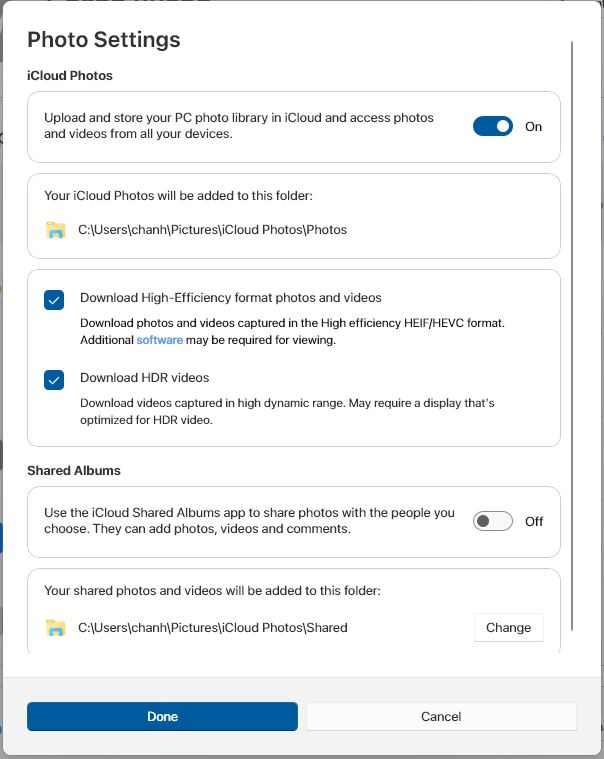 The iCloud photo sync works seamlessly with iPads and Mac computers. It does not work well with a Windows computer.
On Windows, you have to install the iCloud for Windows software. Enabling the “iCloud Photos” feature would sync iCloud photos to an “iCloud Photos” folder under the Windows’ “Pictures” folder. Unfortunately, the software is half-baked, buggy, and laggy. The only functions you can count on to sync reliably are adding and deleting photos; and even then, it is not 100%. The rest of the functions only partially work or don’t work at all.
Things to keep in mind when using iCloud for Windows:
- Adding a photo to iCloud will sync the photo to Windows. (iCloud refused to sync 6 photos to my Windows desktop and I don’t know why.)
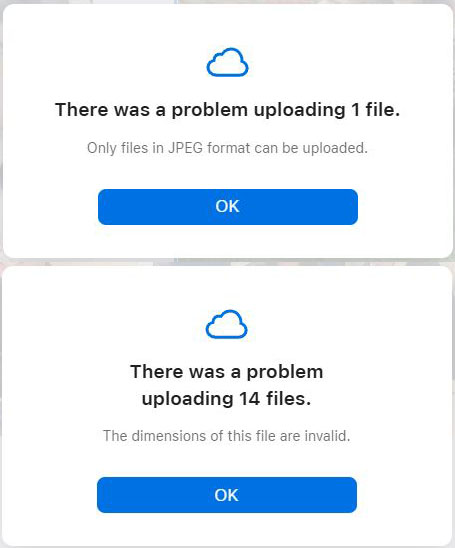
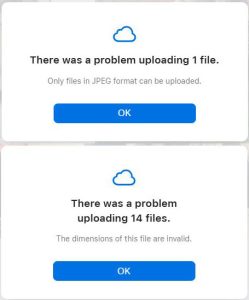 Adding a photo to the Windows “iCloud Photos” folder will sync the photo to iCloud, unless iCloud deems the photo as unsupported. I couldn’t figure out why a few JPEG photos and MPEG-4 videos couldn’t upload while the rest could. Worse, iCloud would fail silently. The only way I found out was to show the Windows “iCloud Photos” folder in Details view and then sort by Status; the files with no status icon or status “Excluded (not synced)” are the ones not synced to iCloud.
- Editing a photo using the iCloud web interface will sync the changes to iPhone, iPad, and Macs; and vice versa. It will not sync the changes to Windows. Edits include changing a photo’s “Date taken” field (see the iPhone Photos app’s “Adjust Date & Time” option).
- Editing a photo in Windows will not sync the changes to iCloud and other Apple devices.
- Deleting a photo in iCloud will cause Windows to delete the photo, and vice versa. (It usually takes 5-10 seconds for the deletion to propagate; but sometimes, it can lag for a minute or longer.)
- On Windows 10, the Microsoft Photos app will not show photos from the “iCloud Photos” folder. Instead, use the Microsoft Store to download the Microsoft Photos Legacy app. The legacy app will automatically include the “iCloud Photos” folder and can sort photos by “Date taken” (versus File Explorer which sorts by file modification time). (Windows 11 should not require the Photos Legacy app.)
- On Windows 10, to view HEIC images and play HEVC videos, use the Microsoft Store to download the free HEIF Image Extensions and purchase the HEVC Video Extensions (for $0.99). (My Windows desktop was still not able to view a few .heic files. Not sure why.)
- Bug: An edited photo on the iPhone was not propagated to iCloud. Solution: Take a photo with the iPhone to trigger propagation of the modified photo and the new photo.
- Bug: When I view a photo in the Photos Legacy app, the photo suddenly disappears but still exists in the “iCloud Photos” folder. Solution: Restart the Photos Legacy app.
- Bug: Preview thumbnails for videos on Windows may not be supported and be displayed as a dark gray box.
- Bug: On Windows, do not right-click on the “iCloud Photos” folder and select “Free up space”. Supposedly, this would delete the downloaded data (leaving thumbnail images as placeholders) and re-download when you attempt to view. However, I tried it and the re-download never occurred. Solution: Disable the iCloud Photos feature, delete the “iCloud Photos” folder, reboot, and enable the iCloud Photos feature again.
- In the Photos Legacy app, when deleting a photo, it can take 5 seconds for the photo to disappear. So be patient.
- On Windows, you can drag a photo into the “iCloud Photos” folder to add using File Explorer, but you cannot drag the file out to delete. You can delete the file directly though.
- Video files do not have a “Date taken” meta field. I think it depends on the “Date created” or “Date modified” field which unfortunately cannot be modified.
Albums and Duplicates
Apple Photos has concepts of subfolders and albums, but it is totally different from Windows Photos. In Apple Photos, the subfolders can contain albums and other subfolders, but never photos and videos. Photo albums just contain pointers to photos and videos. In Windows Photos, subfolders can contain photos and videos. And there is no concept of a separate album because the subfolder is the album. The “iCloud for Windows” software does not support syncing albums and subfolders.
As a minimalist, I don’t plan to use albums and subfolders. The iPhone’s camera roll represents the main “inbox” containing all photos and videos. The camera roll is synced to iCloud and then to other devices. Everything is sorted by the date taken. I recommend always to manually set the date taken before adding a photo (if it is not already configured or configured incorrectly – when scanning a physical photo, the current date is used). This prevents having to search for the photo, amongst the hundreds or thousands of photos, to update the “Date taken” field.
The iPhone Photos app has a nice feature to detect duplicates. It doesn’t work 100% but it will catch most of the duplicates. After adding photos, wait a day (I think you have to plug the iPhone into an outlet overnight) before opening the Photos app. At the bottom, under Utilities, a “Duplicates” entry will appear if duplicates were detected. Tap into it, select all the duplicates, and “Merge the exact copies”. Exact copies have the same size and date taken. For inexact duplicates, merging should select the higher quality photo (larger size?) and keep the most comprehensive meta info like Date taken (which date is picked?). Alternatively, you can manually delete one of the inexact duplicates.
Note: The macOS Photos app would also scan for duplicates but I saw this message, “Photos will finish scanning for duplicates when you’re not using the app and your Mac is connected to power”. Never tried it because I always turn off the Macbook when not in use.